
AI Christmas Desktop Wallpaper: 16 Original Prompts
Create an AI Christmas Desktop Wallpaper that fits your screen and leaves room for icons. Use 16 original prompts, layout tips, and a practical workflow.
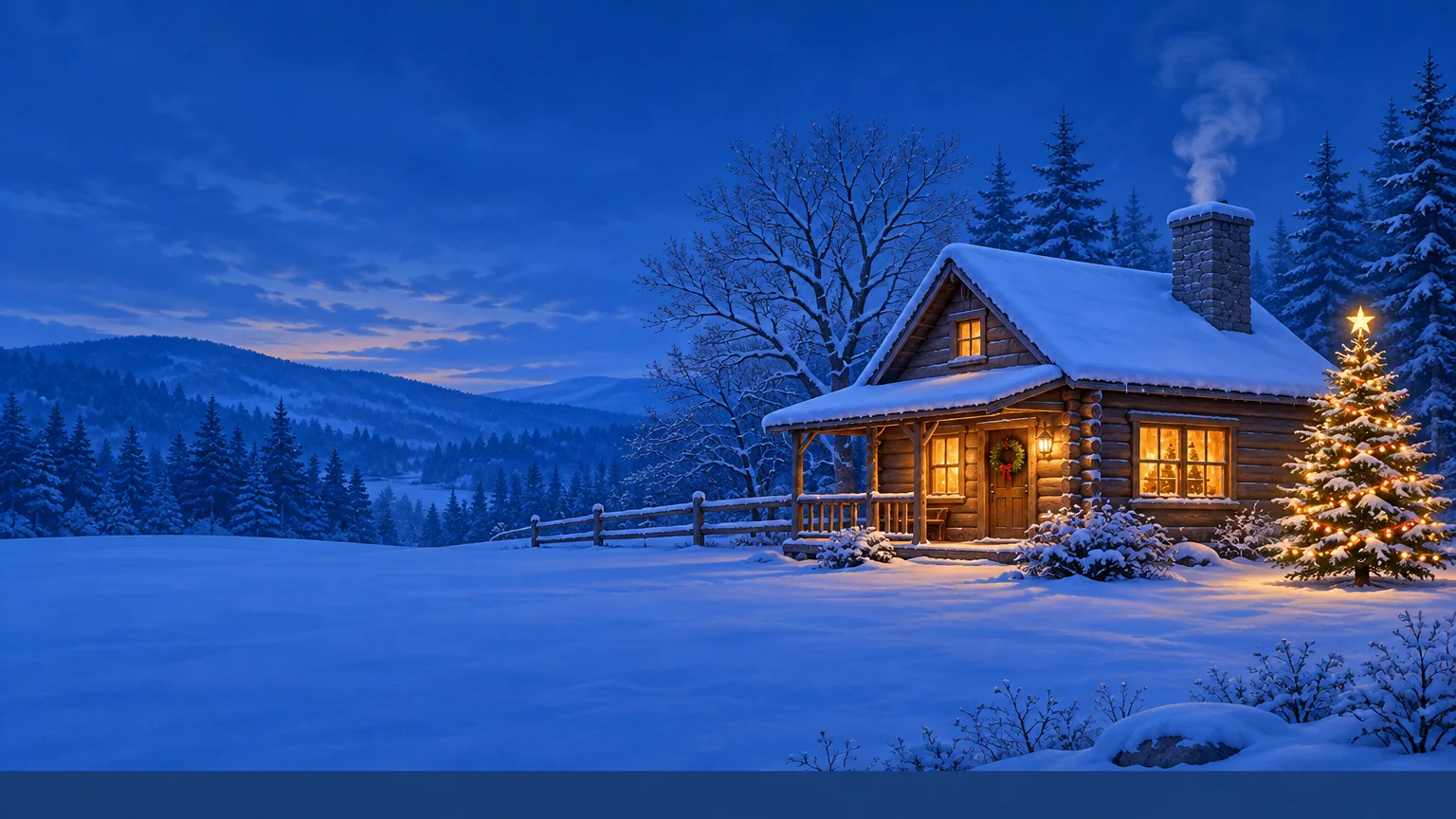
AI Christmas Desktop Wallpaper works best when the scene is composed for your screen, not just cropped to fit it. Start with a wide canvas, place the main subject away from icons and the taskbar or dock, and adjust the prompt to match your display before generating or preparing an image for upscaling.
What's new on this page
- 2026-11-26 — Page published. Added original Christmas desktop wallpaper prompts with screen-ratio and icon-space tips.
Set up the canvas before you prompt
Check your display’s aspect ratio and native resolution in its system settings. Common desktop formats include 16:9, 16:10, and ultrawide ratios such as 21:9. Use the closest matching canvas option in your image tool; if the exact ratio is unavailable, choose a nearby wide format and keep important details toward the center so you can crop carefully later.
A useful composition rule: reserve the lower edge for the taskbar or dock, and leave a quiet area where your desktop icons usually sit. For a left-side icon column, put the focal subject on the right. Reverse that arrangement if your icons are on the right. On ultrawide screens, ask for a broad, continuous environment rather than stretching a centered portrait-like scene.
| Display shape | Prompt wording to add | Composition note |
|---|---|---|
| 16:9 | “wide horizontal desktop wallpaper, 16:9 composition” | Keep the main subject away from the lower edge. |
| 16:10 | “slightly taller wide desktop composition, 16:10” | Allow extra breathing room above and below the focal area. |
| Ultrawide | “panoramic ultrawide desktop wallpaper, 21:9 composition” | Spread scenery across the width; avoid tiny focal details at the edges. |
Cozy and classic prompts
Copy a prompt, then replace the bracketed direction with your preferred icon-side layout. Add “no lettering, no watermark” if you want a clean background.
- Cabin window: “Cozy Christmas cabin interior at blue hour, snowy pines visible through a large window, one softly lit tree placed on the right, warm lamplight, calm editorial illustration, wide horizontal desktop wallpaper, 16:9 composition, open uncluttered space on the left for desktop icons, keep the bottom edge visually quiet.”
- Evergreen still life: “A small fir tree with handmade paper ornaments beside a stack of wrapped gifts, warm cream and forest-green palette, painterly texture, focal arrangement on the left, 16:10 desktop wallpaper, generous simple negative space on the right, no text.”
- Snowy village: “Quiet winter village street at dusk, glowing windows and gentle falling snow, one bright wreath on a doorway positioned on the right, cinematic but peaceful, 16:9 desktop composition, darker low-detail area on the left for icons and a restrained lower edge.”
- Cocoa break: “Steaming mug of cocoa with cinnamon and a knitted mitten on a wooden table, softly blurred Christmas lights in the background, still life grouped on the right, wide 16:10 wallpaper, clear empty area on the left, subtle detail, no lettering.”
Bright, playful prompts
- Gift-filled sleigh: “Original storybook reindeer beside a small sleigh of colorful gifts in a snowy clearing, friendly expressive design, subject on the right, bright winter morning, 16:9 desktop wallpaper, open snowfield on the left, keep the bottom strip simple.”
- Gingerbread workshop: “Whimsical gingerbread workshop with tiny cookie makers decorating star-shaped biscuits, warm candy colors, detailed activity concentrated on the left-center, 16:10 wallpaper, quieter right side for icons, no words or labels.”
- Penguin parade: “A line of original, charming penguin characters carrying little lanterns across a snowy hill, panoramic view, characters grouped on the left third, 21:9 ultrawide desktop wallpaper, open snowy space extending to the right, crisp shapes and gentle snowfall.”
- Ornament planet: “Dreamlike Christmas night sky with oversized glass ornaments floating above snowy mountains, a single luminous ornament placed right of center, teal and gold palette, 21:9 panoramic wallpaper, uncluttered dark sky across the left for icons.”
Quiet, minimal prompts
- Winter branches: “Minimal close-up of delicate snow-covered evergreen branches entering from the upper-right corner, pale warm-gray background, restrained natural texture, 16:10 desktop wallpaper, broad empty space across the left and lower area.”
- Soft color blocks: “Minimal abstract Christmas wallpaper with layered evergreen and cranberry shapes, subtle paper texture, small star detail in the upper-right, 16:9 wide composition, calm open area on the left, no text, no gradients that reduce icon readability.”
- Moonlit forest: “Sparse snowy fir forest under a clear moonlit sky, trees clustered along the far-right edge, deep navy and silver palette, 16:9 desktop wallpaper, wide low-detail sky on the left, dark simple lower edge.”
- Single tree: “One small, elegantly decorated Christmas tree in a quiet snowy landscape, tree placed right of center, soft overcast light, muted sage and ivory colors, 21:9 ultrawide wallpaper, broad negative space on the left and an unobtrusive bottom edge.”
Cinematic and panoramic prompts
- Aurora over the pines: “Wide winter valley with evergreen silhouettes and a graceful aurora, tiny warmly lit cabin on the right third, cinematic natural color, 21:9 ultrawide desktop wallpaper, open dark sky on the left for icons, no foreground detail along the bottom.”
- City holiday lights: “View down a snowy city avenue lined with tasteful holiday lights, perspective leading toward a distant tree on the right, soft evening glow, 16:9 desktop wallpaper, keep the left side calmer and the lower edge clear for the taskbar.”
- Frozen lake: “Panoramic frozen lake reflecting a distant line of Christmas lights, snow-covered trees framing the far edges, small focal cabin on the left third, 21:9 ultrawide composition, quiet open ice across the center, subdued detail at the bottom.”
- Starry mountain night: “Snowy mountain ridge beneath a star-filled winter sky, subtle festive lights on a lone cabin at the far right, expansive cinematic landscape, 21:9 ultrawide wallpaper, broad dark sky on the left for icons, no lettering.”
Adapt a prompt to your workflow
Start with one prompt and change only a few details at a time: the aspect ratio, focal position, palette, and empty area. That makes it easier to see which wording improves the layout. If your tool offers image-size or aspect-ratio controls, set them before generation; prompt wording helps describe the composition but does not replace an available canvas setting.
Use the AI image tools page to explore the site’s image options. When adapting a prompt there, keep the scene description and layout instructions together, then use the tool’s available controls rather than assuming it supports a setting you cannot see. If you already have an image and want to prepare it for a larger display, check its source dimensions and aspect ratio first. Upscaling can increase pixel dimensions, but it does not change the composition; crop or reframe separately if the image shape does not match your screen.
Before choosing a final version, preview it as a desktop background. Check that icons remain readable, the focal subject is not hidden by the dock or taskbar, and a crop has not cut off important details. For an ultrawide display, inspect both ends of the image as well as the center.
FAQ
What resolution should a Christmas desktop wallpaper be?
Use your monitor’s native resolution when the image tool supports it. If not, match the aspect ratio as closely as possible and check the source dimensions before using an upscaling workflow. Avoid stretching a mismatched image; crop or reframe it instead.
How do I keep icons from covering the main subject?
Put the focal subject on the side opposite your icon column and explicitly ask for a quiet area there. Also reserve the bottom edge for the taskbar or dock. Preview the image on your actual desktop before settling on it.
Can one prompt work for 16:9 and ultrawide screens?
You can reuse the scene idea, but adjust its composition instructions. For ultrawide, request a panoramic environment and spread supporting scenery across the frame; don’t rely on stretching a 16:9 image.
Should I upscale a wallpaper before checking its crop?
Check the aspect ratio and composition first. Upscaling does not move the subject or create a better crop, so confirm the layout fits your display before preparing a larger image.
For your next step, explore the AI image tools, then pair a prompt with your display’s measurements and a clear subject-safe layout.